
User Manual
Patrol and inspection with the ZSBot Genisom L1W and the Pashupati Controller
Version 1.6 · 2026-11-15
For operators of a Genisom L1W running Pashupati. No robotics knowledge needed.
The robot's own hardware (battery, charging, power switch, the ZSBot remote) is described in the ZSBot Genisom L1W manual. This manual covers what Pashupati adds: driving from the Pashupati Controller, teaching routes, patrols, and AI inspection. Parameters and tuning are in the Pashupati Tuning Guide.
Download: the printable PDF, A5 for the phone.
Safety first
The Genisom L1W is a strong, fast machine with legs and wheels. It weighs as much as a large dog and can hurt people or break things when it is handled carelessly. Read this chapter before you use the robot for the first time.
Before every run
- Walk the route. The floor must be dry, even and free of loose cables.
- Keep routes away from places where the floor ends: stairs going down, escalator openings, platform edges, holes. The robot does not see drops.
- Glass walls, mirrors and very thin objects can be invisible to the robot's laser scanner (LiDAR). Low objects in front of the robot, such as a box or a bag, are seen by the camera: keep its window clean. Objects lower than about 12 cm, such as a 10 cm step, a cable taped to the floor or a flat bag, are not treated as obstacles: the robot walks over them. Keep what it must not step on off the route.
- Charge the robot battery and the handheld. Start a patrol with at least 30 % battery.
- Keep the ZSBot remote nearby as a backup. It can take control of the robot at any time.
While the robot moves
- Stay at least 1 m away from a moving robot. Keep children and pets away from it.
- Never touch the legs or wheels while the robot is standing, and never lift or push it then.
- In REMOTE (driving by hand) you are responsible for every movement. The robot does not slow down for obstacles when you drive it.
- In AUTO the robot slows down and stops for obstacles in any direction. Still, stay close enough to stop it, and keep the handheld in your hand.
Emergency stop
If anything goes wrong, press STOP
The red STOP button on the main screen, or the B button on any page of the app, stops the robot at once. The robot then stands still and ignores every movement command until you release the stop.
- To release the stop, hold Hold to release for one second. A patrol stays paused after a release: tap Resume when it is safe.
- Motor stop in the robot actions is the robot's own emergency stop. Use it only if STOP does not hold the robot. The ZSBot manual describes what the robot does then.
- NETRA (the command center) can also stop the robot from the office.
The system at a glance
What Pashupati does
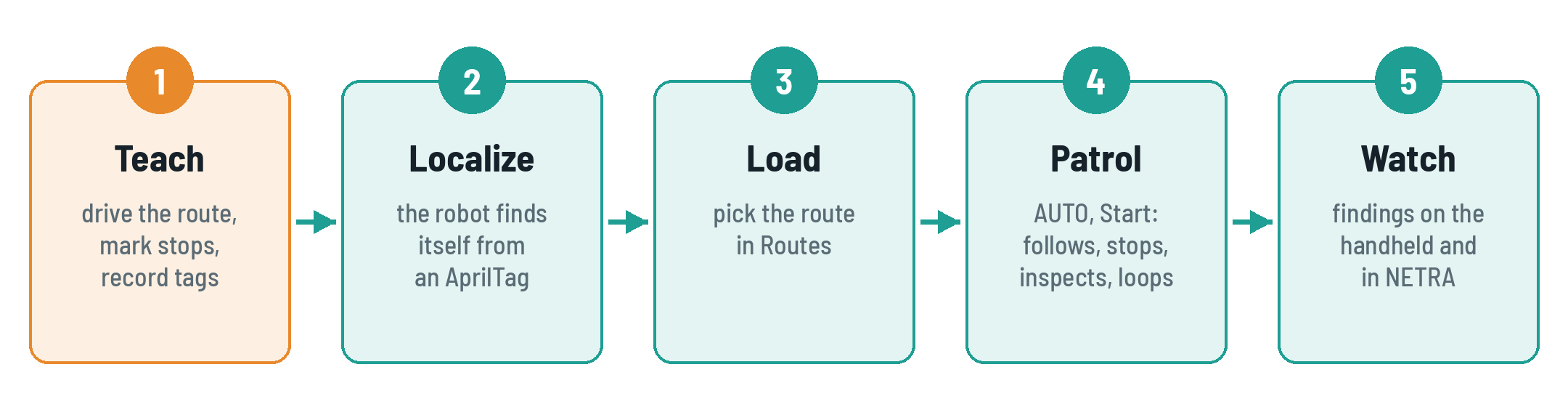
Pashupati is the software that turns the Genisom L1W into a patrol robot. You drive a route once while the robot learns it. From then on the robot walks that route on its own, again and again. It stops at the points you marked, looks at the floor with a camera and an AI model, and reports what it finds, such as trash or a spill, to the handheld and to NETRA. Along the way it counts the people it sees and keeps clear of people and obstacles.
The parts
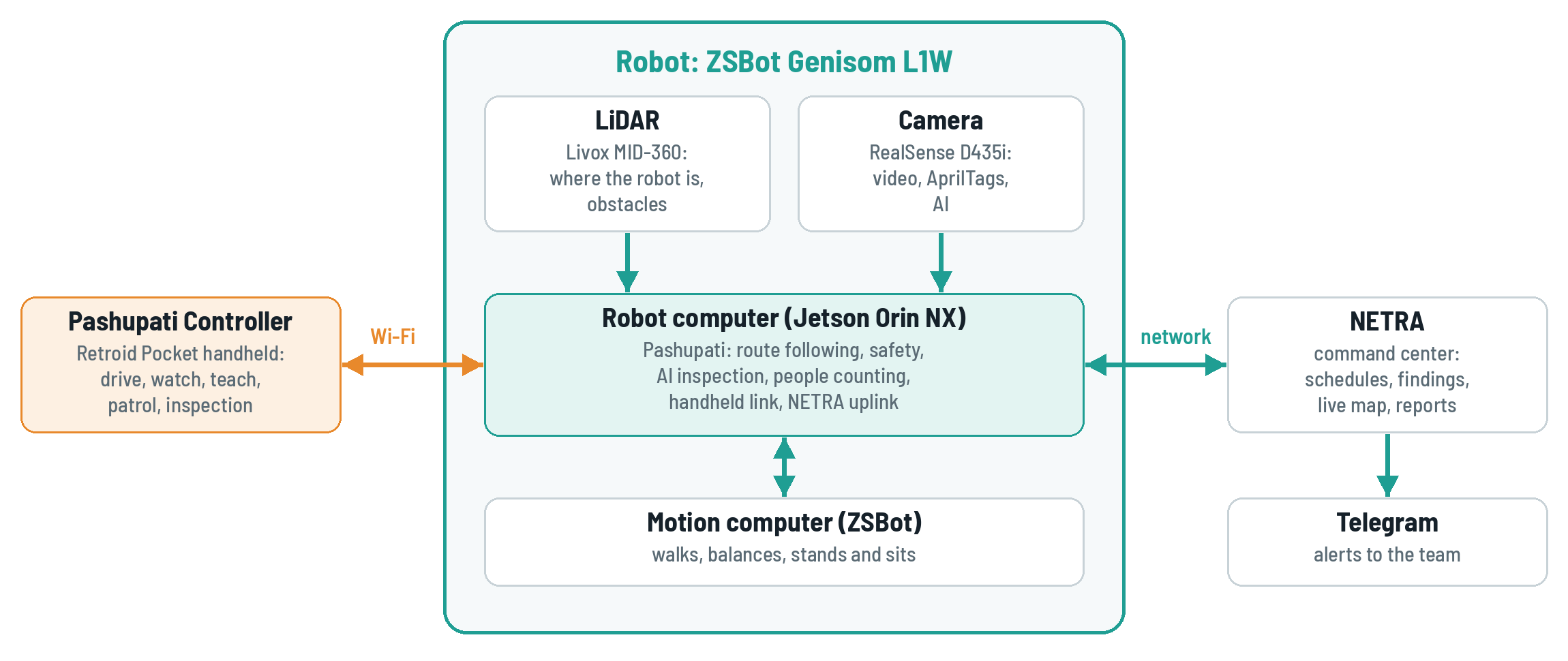
| Part | What it is |
|---|---|
| Genisom L1W | the robot: walks and rolls on four legs with wheels |
| Robot computer | an NVIDIA Jetson on the robot that runs Pashupati |
| LiDAR | the laser scanner on top: tells the robot where it is and what is around it |
| Camera | Intel RealSense: video for you, AprilTags, the AI inspection, and low obstacles in front |
| Pashupati Controller | the app on the Retroid Pocket handheld you hold |
| NETRA | the command center in the office: schedules, findings, reports |
How a patrol works
Words you will see
| Word | Meaning |
|---|---|
| AUTO | the robot drives itself along the loaded route |
| REMOTE | you drive the robot with the handheld's sticks |
| Route | a path you recorded once; the robot repeats it |
| Stop point | a place on the route where the robot stops and inspects |
| AprilTag | a printed black-and-white square on a wall; the robot uses it to know where it is |
| Localize | the robot works out where it is on the map, usually from an AprilTag |
| Inspection | the AI looks at the floor in the camera image |
| Finding | something the AI reported, for example Trash |
| E-stop | the emergency stop (STOP button) |
Getting ready
Power on
- Insert a charged battery and switch the robot on, as described in the ZSBot manual. The robot stays down while it starts.
- Wait about two minutes. The robot computer starts Pashupati by itself.
INFO
Right after power-on the robot computer waits up to one minute for its clock to be set over the network. Give it that time before you start a patrol.
Connect the handheld
- Switch on the Retroid Pocket and connect it to the robot's Wi-Fi network. Your technician tells you its name and password.
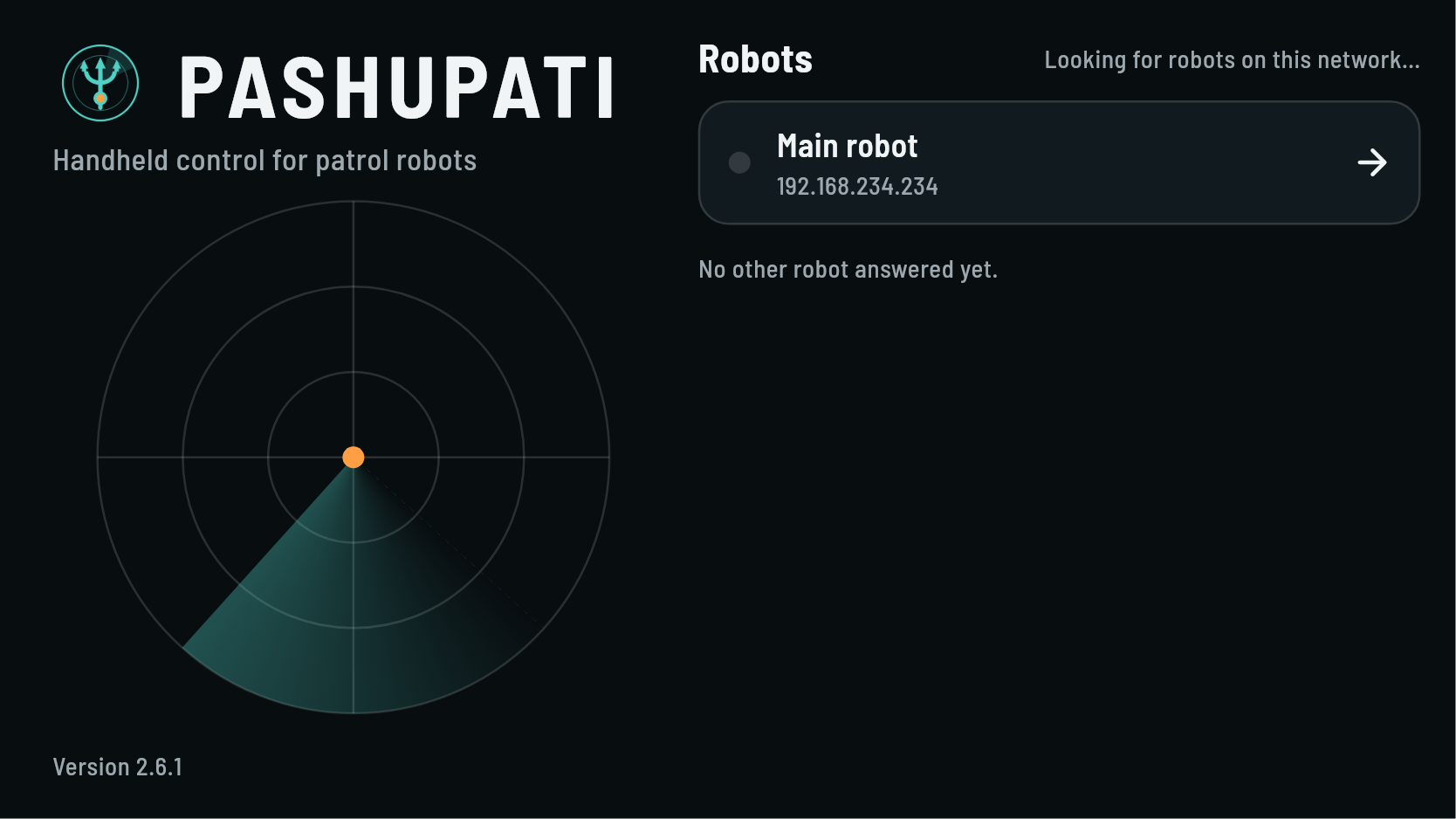
- Open the Pashupati app. The start screen looks for robots on the network.
- Tap Main robot, or the robot's name in the list once it is found.
- The main screen opens (chapter 4).
| The app says | What to do |
|---|---|
| The robot does not answer | check that the handheld is on the robot's Wi-Fi; wait until two minutes after power-on; check the robot address (next section) |
| The robot rejected the token | the token in the app differs from the robot's: see the next section |
| Another handheld is driving this robot | close the app on the other handheld |
First-time setup
You only do this once per handheld, or when your technician gives you new details.
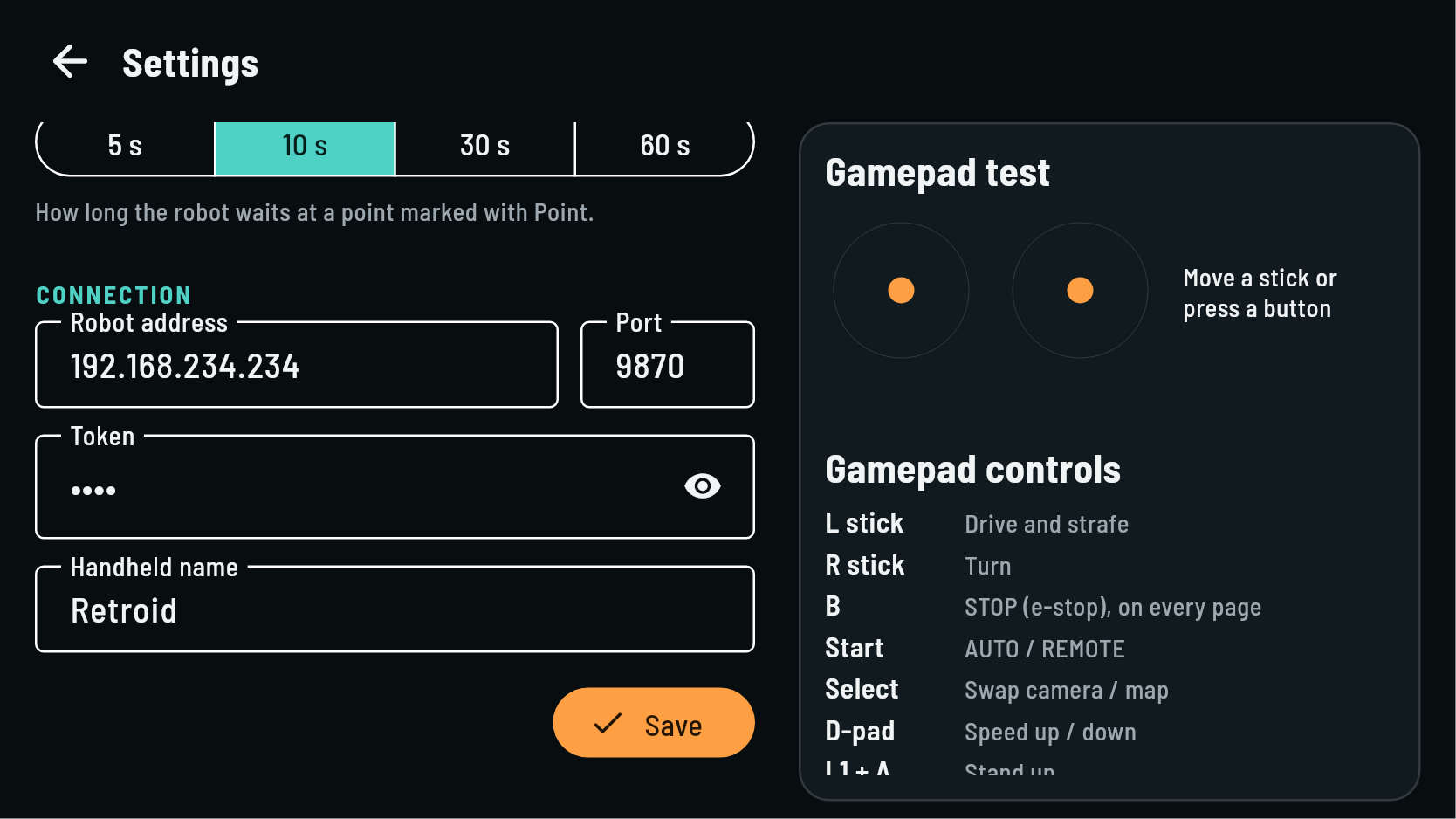
- On the start screen, tap the version text at the bottom left three times quickly.
- Enter the Robot address (
192.168.234.234unless your technician says otherwise), the Port (9870) and the Token. - Give the handheld a name, for example Retroid Security 1, so others can see who drives.
- Tap Save, then go back.
Stand the robot up
- Make sure there is at least 1 m of free space around the robot.
- Tap Stand up in the robot actions on the right, or hold L1 and press A.
- Wait until the robot stands still.
The robot ignores the handheld
After someone used the ZSBot remote, the robot may listen only to that remote. Tap Take control in the robot actions to give control back to the handheld.
The Pashupati Controller
The main screen
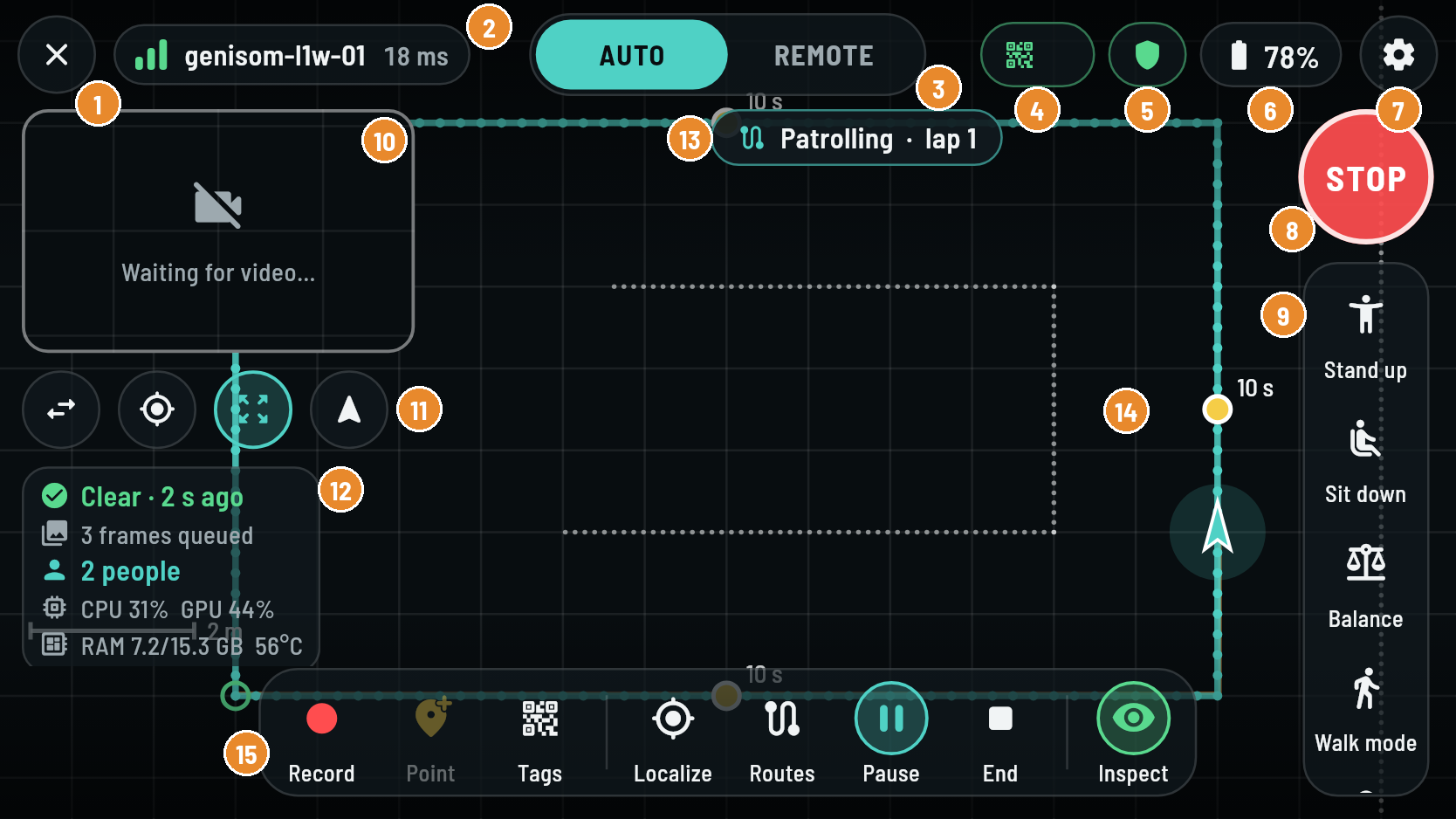
| Part | What it shows or does | |
|---|---|---|
| 1 | Disconnect | leaves the robot and goes back to the start screen |
| 2 | Link | robot name, signal bars and delay; red when the Wi-Fi link is weak |
| 3 | AUTO / REMOTE | who drives: the robot (AUTO) or you (REMOTE) |
| 4 | Localization | how the robot knows where it is: Tag, Start pose, Pose, or No loc in red |
| 5 | Protective field | green shield: path clear; yellow: slowed for an obstacle; red: blocked or no scan |
| 6 | Battery | robot battery level |
| 7 | Settings | speed level, video, language and more (section 4.4) |
| 8 | STOP | the emergency stop (section 1.3) |
| 9 | Robot actions | stand up, sit down, balance, walk mode, gears, take control, motor stop |
| 10 | Small view | the camera or the map; tap it to swap the two views |
| 11 | View buttons | swap views, follow the robot, show the whole route, turn the map with the robot |
| 12 | At a glance | last AI result, frames waiting, people in view, the robot computer's load; the trip meter under it (section 4.5) |
| 13 | Patrol status | what the robot is doing now (section 7.5) |
| 14 | Map | the route in teal, stop points in yellow, the robot as an arrow |
| 15 | Toolbar | teach (Record, Point, Tags), patrol (Localize, Routes, Start, End), Inspect |
The map can be moved with your fingers: pinch to zoom, drag to look around, twist with two fingers to turn it. Double-tap to follow the robot again.
Status chips
| Chip | Shows | Means |
|---|---|---|
| Localization | Tag base_map | the robot found itself from that AprilTag |
| Start pose | the robot uses its start position as the map origin | |
| Pose | someone set the position by hand on a computer | |
| No loc (red) | the robot does not know where it is: tap Localize | |
| Protective field | Path clear | nothing in the way |
| Slowed | the robot slows down for something near its path | |
| Blocked | something is too close: the robot holds still | |
| No scan | the laser scanner is not reporting: the robot will not drive itself | |
| Health | Needs attention | something is wrong on the robot: tell your technician |
Gamepad buttons
| Button | Action |
|---|---|
| Left stick | drive forward, back and sideways (REMOTE) |
| Right stick | turn (REMOTE) |
| B | STOP, on every page |
| Start | switch AUTO / REMOTE |
| Select | swap camera and map |
| D-pad up / down | speed level up / down |
| L1 + A | stand up |
| L1 + Y | sit down |
| R1 (held) | drive, only when Hold R1 to drive is on in the settings |
Settings
Tap the gear at the top right. Changes apply at once.
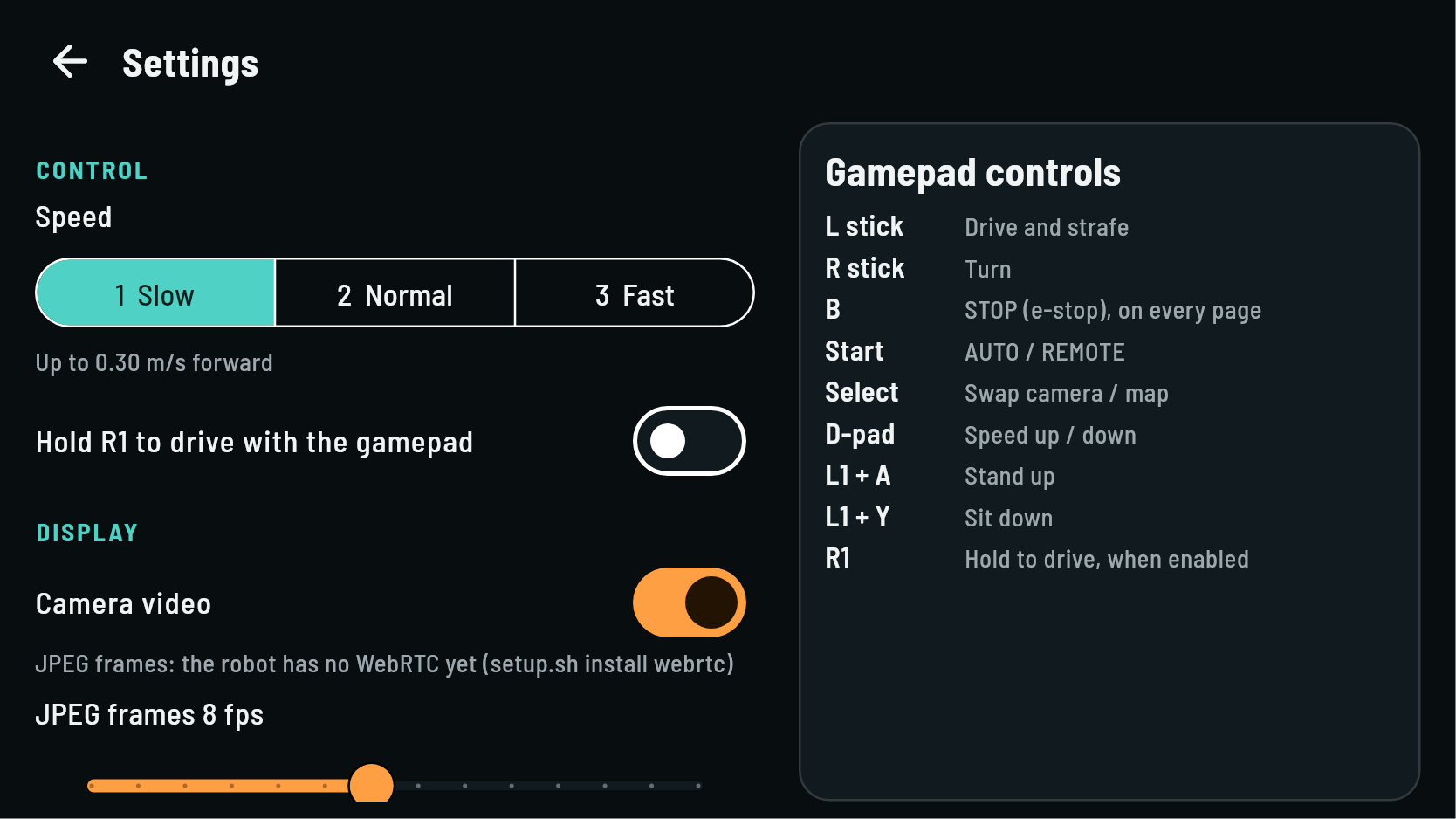
| Setting | What it changes |
|---|---|
| Speed | 1 Slow, 2 Normal, 3 Fast: 30, 60 or 100 % of the robot's top speed when you drive |
| Hold R1 to drive | the sticks only drive while R1 is held (a dead-man switch) |
| Camera video | video from the robot camera on or off |
| Lidar points on the map | shows the walls and objects the scanner sees |
| Robot CPU, GPU and RAM on screen | the load lines in the At a glance panel |
| Distance and speed on screen | the trip meter under the At a glance panel (section 4.5) |
| Language | English or Indonesian |
| Inspection at a stop point | how long the robot waits at a point you mark with Point |
Trip meter
Under the At a glance panel the trip meter shows how far the robot walked since it was last reset and for how long it was moving, its speed now, its average speed while moving and its top speed. The robot counts by itself, also while no handheld is connected, and keeps the numbers when it restarts. To start again from zero, hold the trip meter for a second. Turn it off with Distance and speed on screen in the settings.
| Line | Example | Means |
|---|---|---|
| Distance | 1.24 km · moving 52:10 | walked since the last reset, and the time spent walking |
| Now | Now 0.38 m/s | the speed over the last second |
| Average | Avg 0.36 · top 0.52 m/s | the average while walking, and the top speed |
Driving by hand (REMOTE)
- Make sure the robot stands and the area around it is clear.
- Tap REMOTE at the top, or press Start.
- Drive with the left stick (forward, back, sideways) and turn with the right stick.
- Change the speed level with the D-pad, up for faster and down for slower.
- To hand the robot back to the patrol, tap AUTO or press Start again.
WARNING
In REMOTE the robot does not slow down for obstacles. It goes exactly where you steer it. Drive slowly near people and start with speed level 1.
INFO
In AUTO the sticks do nothing. The app reminds you: AUTO mode: switch to REMOTE to drive.
Teaching a route
Plan the route
- Walk the route first and decide where the robot should stop and inspect.
- For a patrol that repeats on its own, end the route within 1 m of where it started. The robot then loops it.
- Fix AprilTags on walls along the route, at about the camera's height, and note their places. Your technician sets which tag numbers the robot uses.
- Avoid passages narrower than about 1.2 m (the robot fits through about 0.7 m, but has no room there to pass obstacles), glass walls, and every drop (section 1.1).
Record the route
A route belongs to a site: the map of one place with its AprilTags and its routes. Your technician creates the site once by starting the robot in teach mode and driving it through the place; after that, routes are recorded on it at any time. The robot records only while it knows where it is (localized).
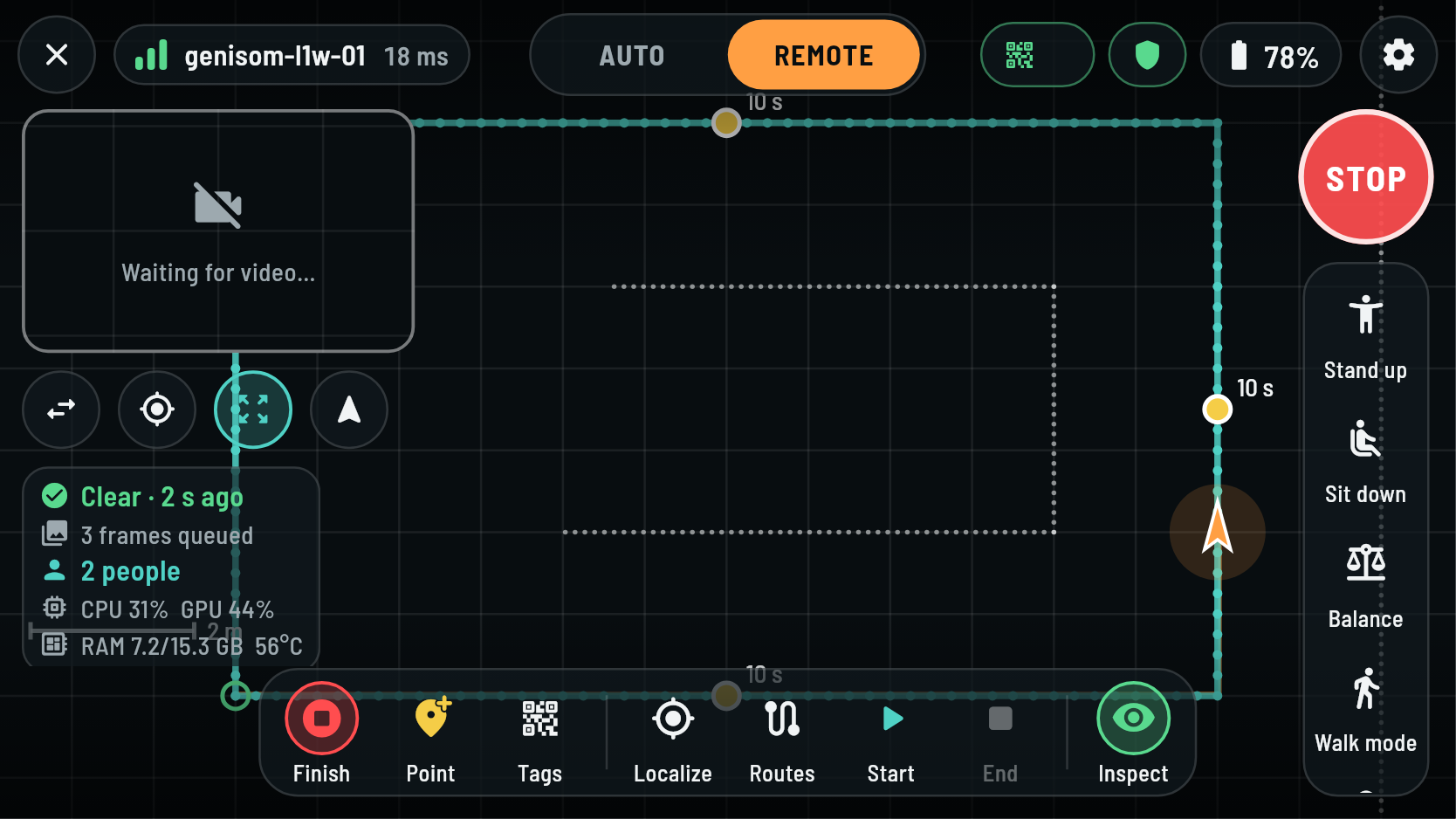
- Stand the robot at the start of the route and switch to REMOTE.
- Tap Record. The app shows Recording a route and the button changes to Finish.
- Drive the route slowly and smoothly. The robot remembers its path.
- At each place where it should inspect, stop and tap Point. The app shows Stop point, inspect 10 s (the time comes from the settings).
- At the end of the route, tap Finish. The app shows Route saved. The route is also sent to NETRA.
TIP
Do not worry about small wobbles while driving. The robot smooths the route by itself, and stop points always stay exactly where you marked them.
Record the AprilTags
Do this in the same session as the route, so the tags and the route share one map.
- Drive the robot to where its camera sees an AprilTag well, about 1 to 2 m from it.
- Hold still and tap Tags. The app shows Tags recorded.
- Repeat for every tag along the route.
Running a patrol (AUTO)
Localize
The robot must know where it is before it may drive itself. Look at the localization chip at the top.
- Tag ... or Start pose: the robot knows where it is.
- No loc in red: turn the robot so its camera sees an AprilTag and tap Localize.
The robot also localizes by itself when it sees a known tag after start-up.
Load a route
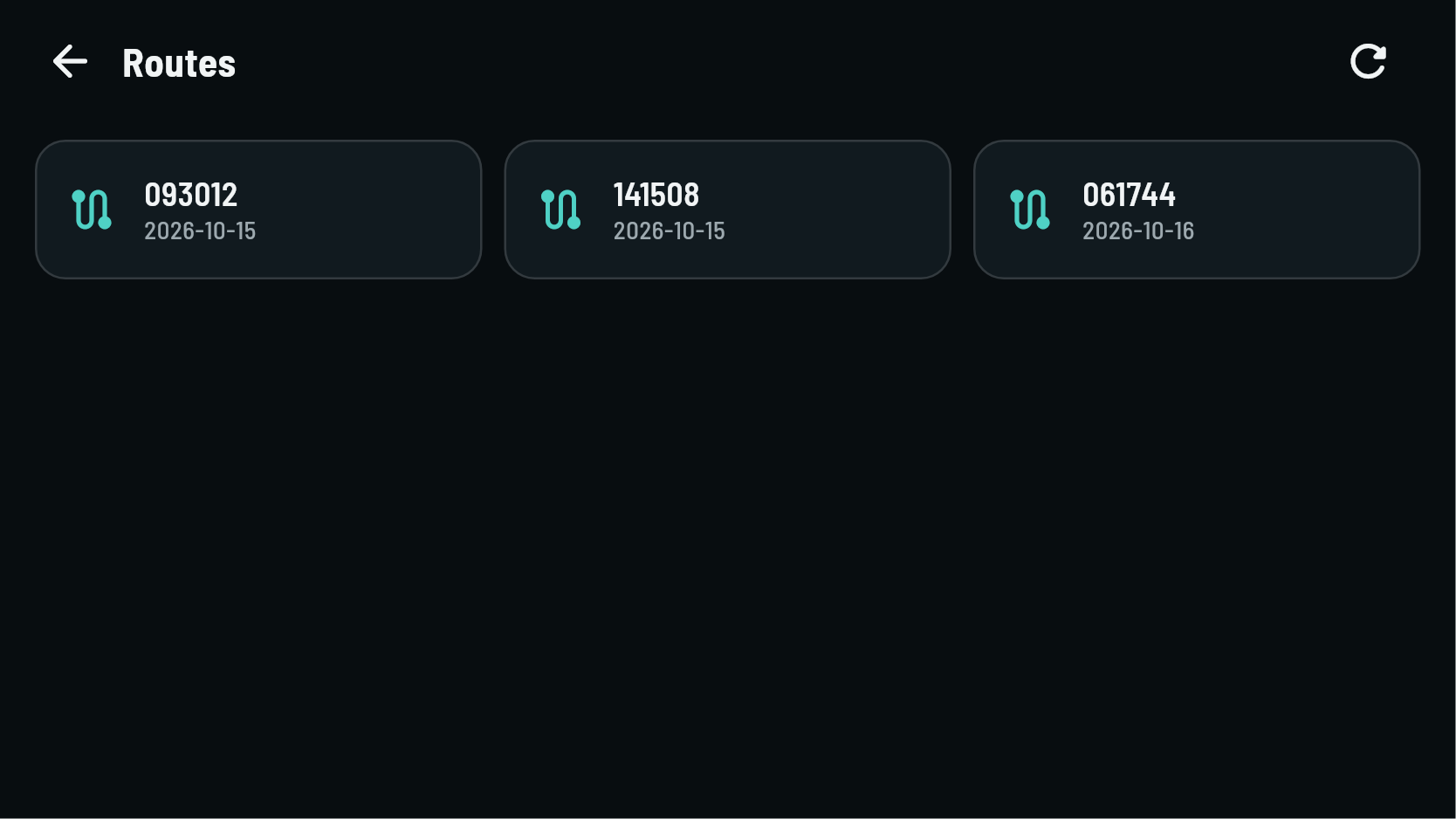
- Tap Routes. The list shows every recorded route by date and time.
- Tap the route to patrol. The app goes back to the main screen and shows the route on the map.
Start, pause, resume and end
- Check that the robot stands, is localized, and is near the route (closer than 3 m).
- Tap AUTO, or press Start.
- Tap Start. The status shows Patrolling. If the robot was beside the route, it first walks onto it (Walking onto the route).
- Pause holds the robot where it is. Resume continues.
- End finishes the patrol. The robot stops and stands.
INFO
You can also tap Start in REMOTE. The patrol then begins as soon as you switch to AUTO.
What the robot does on its own
- Follows the route at the patrol speed (section 8.7), slower in tight bends.
- Stops at each stop point, turns to the recorded direction, waits for the AI to inspect, stays for the stop time, then walks on.
- Passes obstacles by sliding sideways, at most 0.8 m away from the route, through gaps from about 0.7 m wide. When there is no gap, it stops about 0.4 m before the obstacle and waits.
- Slows down and stops for anything in its path, in every direction (the protective field).
- Backs up when it is stuck: when it gets no further for 30 seconds (it can neither pass nor turn), it walks back about 1 m along the way it came, slowly, and tries again. It checks behind it like everywhere else. After three tries at the same place it stays Blocked and waits for you.
- Loops a route that ends near its start, lap after lap.
- Goes home at low battery: when the battery is low, it ends the patrol at the end of the current lap (20 % unless your technician changed it).
Patrol status
| Status | Meaning | What to do |
|---|---|---|
| Idle | no patrol running | load a route and tap Start |
| No route loaded | there is no route to follow | tap Routes and pick one |
| Waiting for localization | the robot does not know where it is | tap Localize in view of a tag |
| Walking onto the route | it walks from beside the route onto it | wait |
| Patrolling | following the route; the lap number is shown | watch |
| Approaching a stop | aligning on a stop point | wait |
| Inspecting | the AI looks at the floor at the stop point | wait |
| Blocked | something is in the way for a while | clear the way; it continues by itself |
| Off the route | the robot is more than 1.5 m from the route | drive it back in REMOTE, then AUTO and Start |
| Sensors stale | a sensor stopped reporting | stop the patrol, call your technician |
| Paused | paused by you, NETRA or after an e-stop | tap Resume when it is safe |
| Emergency stop | STOP is engaged | release it, then Resume |
| Route finished | an open route is done | tap Start for another run |
Emergency stop during a patrol
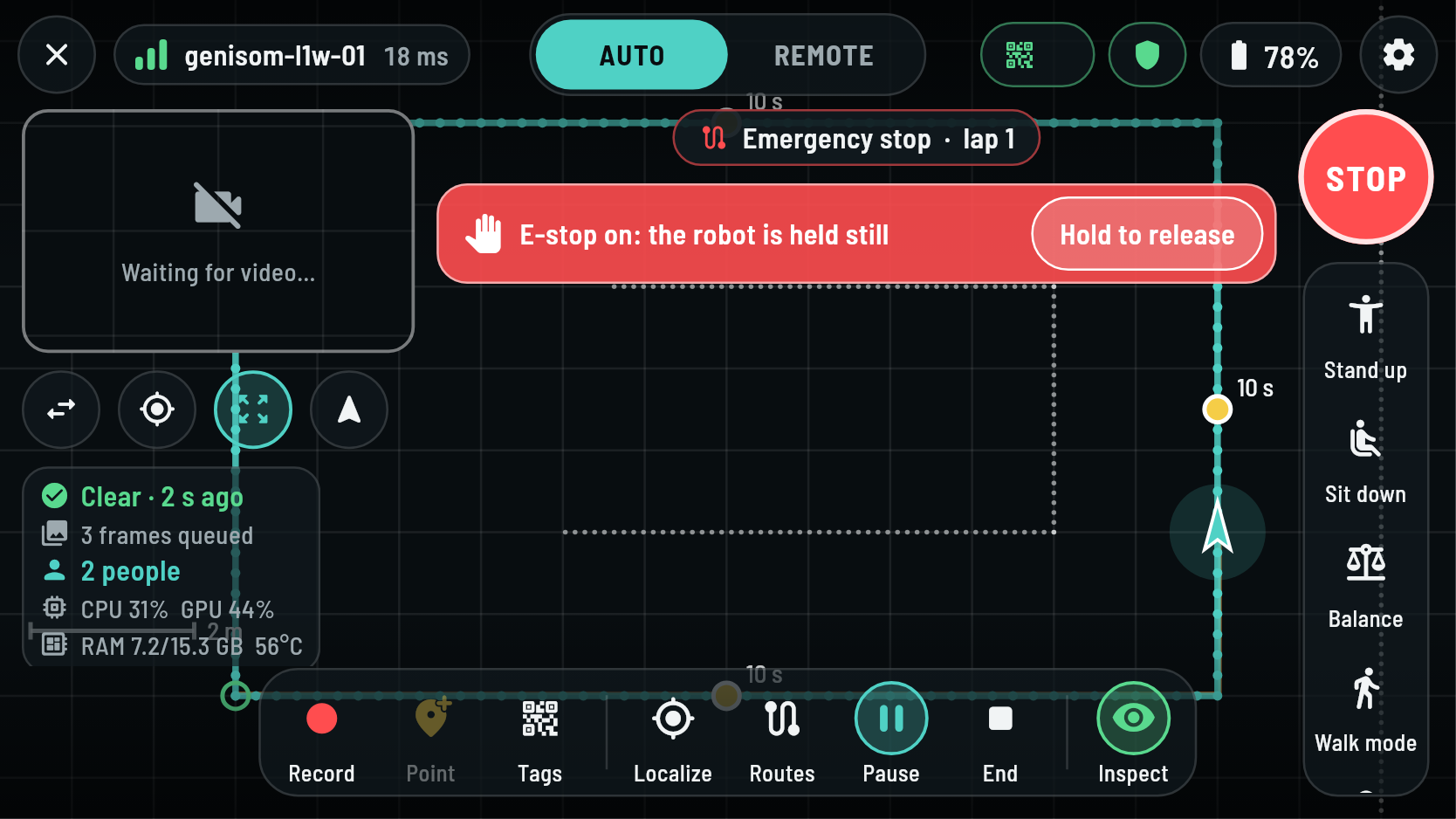
- Press STOP or B. The robot stands still and the screen turns red.
- Make the area safe.
- Hold Hold to release for one second. The patrol stays paused.
- Tap Resume to continue the patrol.
AI inspection and people counting
The Inspection page
Tap Inspect at the right end of the toolbar. The page shows the AI's state, its pace and model, the people counter and the patrol speed.
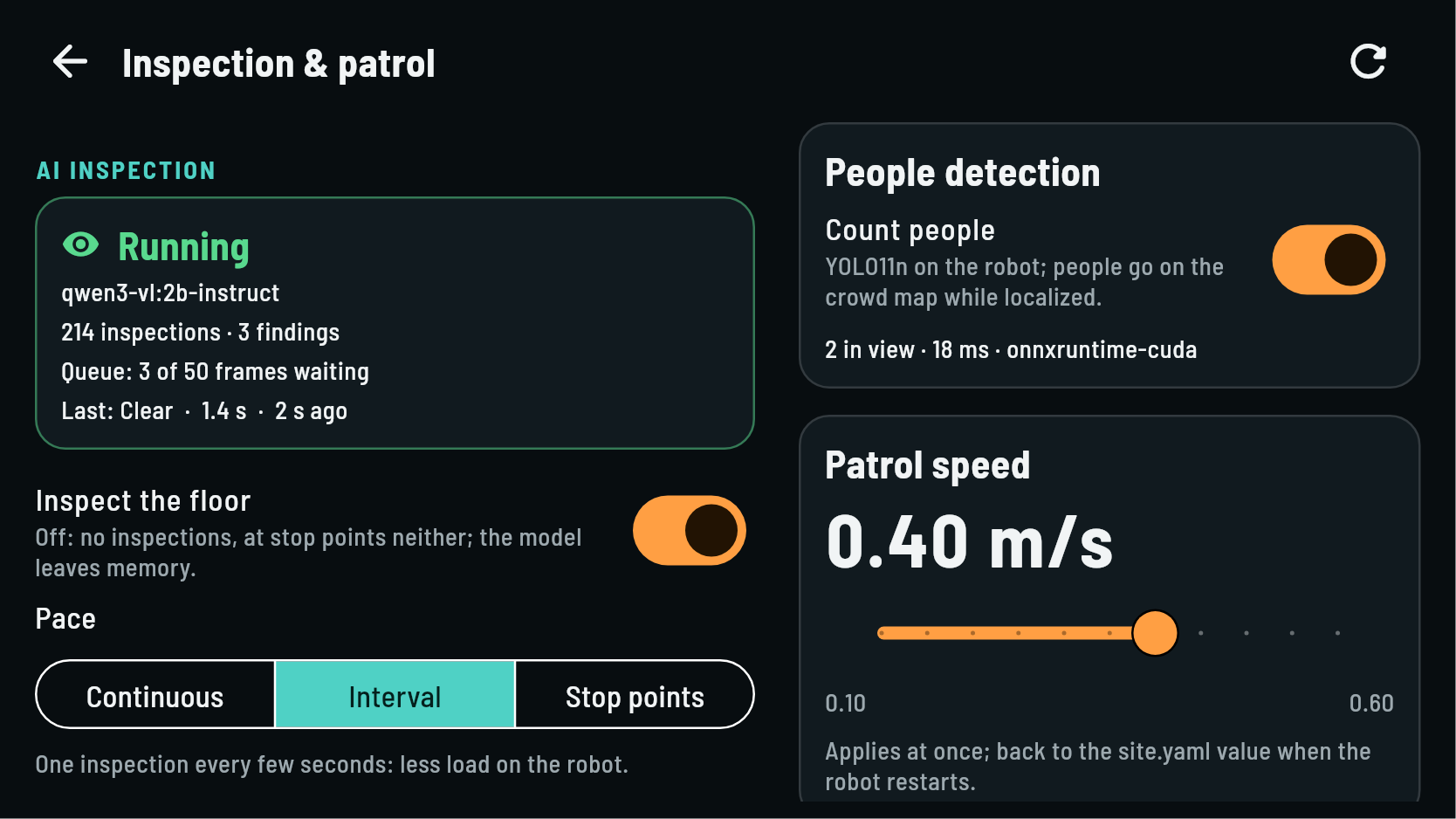
The status box shows:
- the state: Running, Loading the model…, Off, Error, or Not responding;
- the AI model in use;
- how many inspections and findings there were since the robot started;
- the queue, in interval pace (section 8.3);
- the last result and how long ago it was.
Inspection on or off
Use the Inspect the floor switch. When it is off, the robot does not inspect, not even at stop points, and the AI model is unloaded to free the robot's memory. Turning it on again takes a few seconds while the model loads.
Pace
| Pace | The robot inspects | Good for |
|---|---|---|
| Continuous | one image right after the other, all the time | the most thorough patrol |
| Interval | one image every few seconds (slider: 0.1 s to 5 min) | a lighter load on the robot |
| Stop points | only at the stop points of the route | inspecting chosen places only |
In Interval pace the robot takes an image at every interval, even while the AI is still busy with an earlier one. The images wait in a queue and the AI works through them in the order they were taken. The main screen shows 3 frames queued while images are waiting. Each finding is reported with the time and place where its image was taken.
TIP
One inspection takes the AI about 1 to 2 seconds (shown on the page). With a shorter interval the queue fills up and the oldest images are dropped. When the robot stands still, identical images are not queued twice.
AI model
The Model list shows the AI models on the robot. In use marks the active one, and Ready on the robot marks models you can switch to. Tap a model to switch. The status shows Loading the model… for a few seconds. A model marked Not pulled yet must first be installed by your technician.
Finding types
The Finding types list says what the AI looks for. Each type has a description that the AI reads with every image.
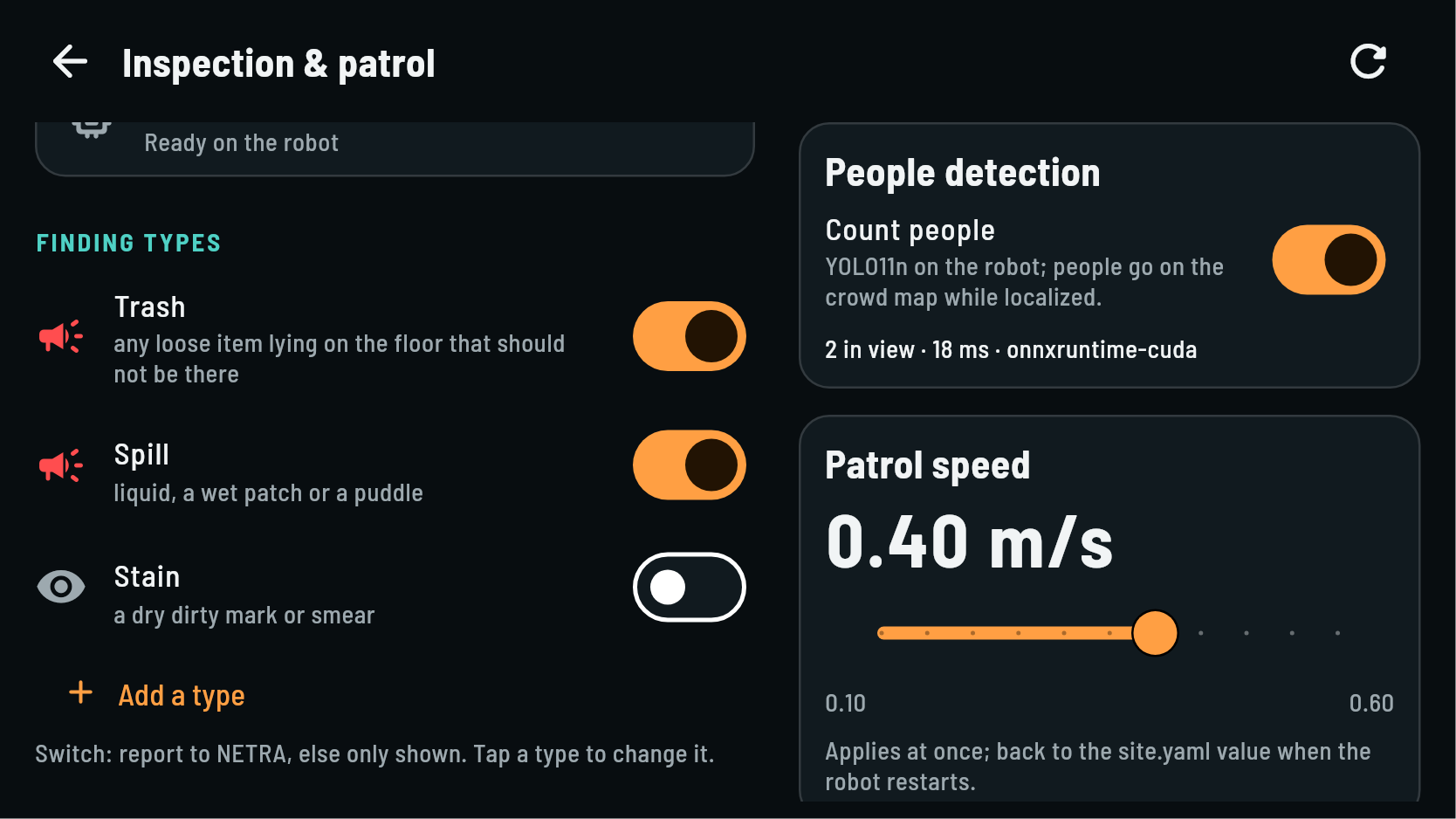
- The switch of a type: on means a finding of this type is reported to NETRA; off means it is only shown on the handheld. Stain is off by default, because shiny floors and reflections are easily taken for stains.
- Tap a type to change its description or to delete it.
- Add a type creates your own type.
To add a type:
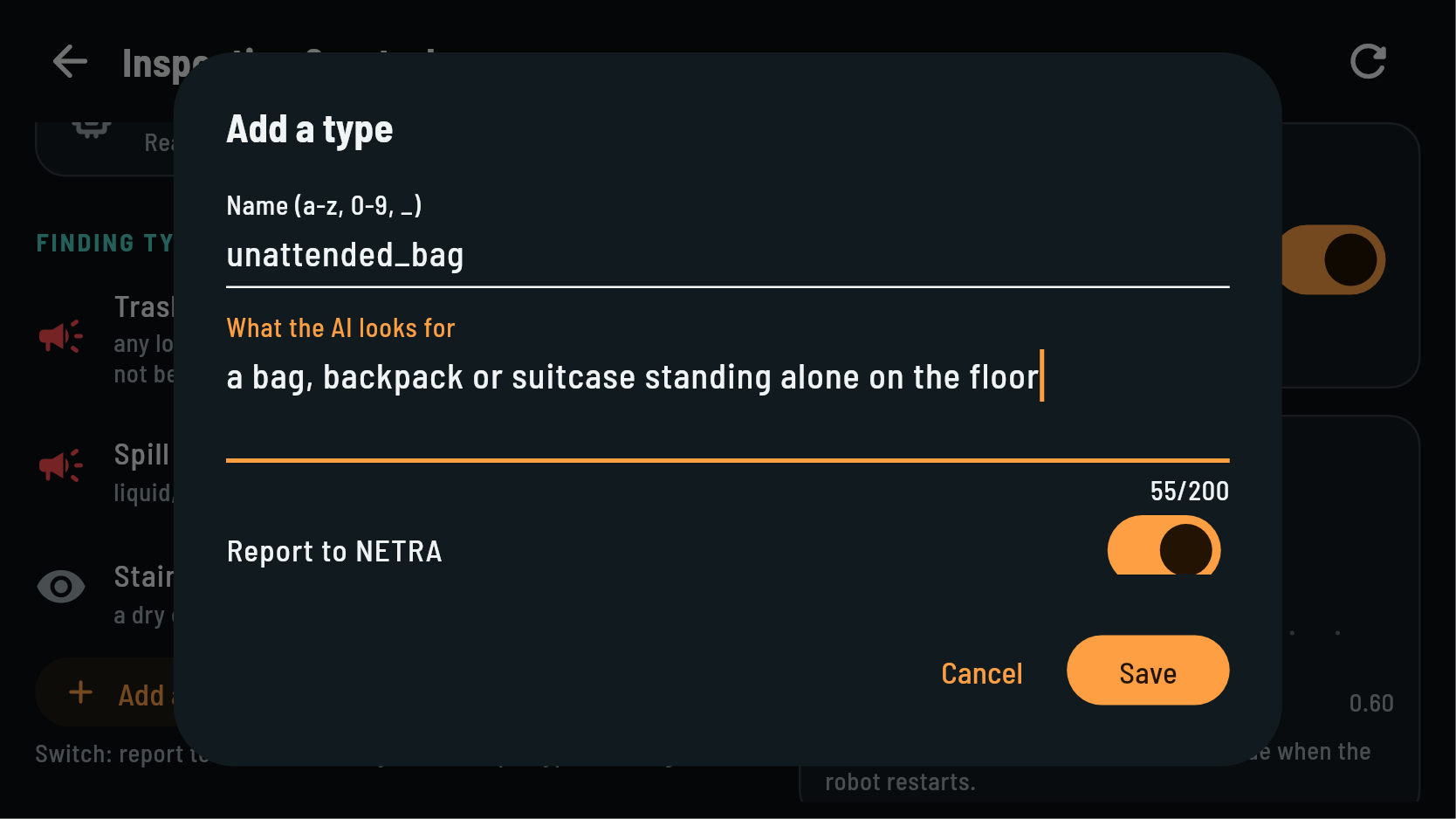
- Tap Add a type.
- Enter a name, for example unattended bag. The app turns it into
unattended_bag. - Describe what the AI should look for, in plain English, for example a bag, backpack or suitcase standing alone on the floor. Short, concrete descriptions work best.
- Choose Report to NETRA, then tap Save.
The robot keeps up to 12 types and remembers them after a restart.
People counting
The Count people switch turns person detection on or off. While it is on:
- the main screen shows how many people are in view;
- people are boxed on the camera video;
- NETRA receives where people were, for its crowd map.
Patrol speed
The Patrol speed slider sets how fast the robot walks its route, in metres per second. It applies at once. After a restart of the robot it goes back to the speed your technician set.
Results on the main screen
The At a glance panel under the small view shows the latest results without opening the Inspection page:
| Line | Example | Means |
|---|---|---|
| AI result | Clear · 2 s ago (green) | the floor was clean in the last image |
| Trash · 12 s ago (red) | a finding that was reported to NETRA | |
| Stain · 5 s ago (yellow) | a finding that is only shown | |
| Queue | 3 frames queued | images waiting for the AI (interval pace) |
| People | 2 people | people in the camera view now |
| Load | CPU 31 % GPU 44 %, RAM 7.2/15.3 GB 56 °C | the robot computer's load; red near the limit |
| Internet | Internet 38 ms | the robot's own internet (its modem) answers; offline in red: no internet, findings wait on the robot |
Each new finding also shows a short message, Finding: Trash, with a vibration. Tap the panel to open the Inspection page.
NETRA command center
NETRA is the command center that runs in the office. Your technician connects the robot to it. Through NETRA the team:
- sees every robot on a live map with its battery and status;
- starts patrols, now or on a weekly schedule, and can pause or stop them;
- receives findings with the photo the AI saw, the time and the place on the map;
- gets alerts in Telegram groups;
- sees crowd maps from the people counter.
Routes you record on the handheld are uploaded to NETRA automatically. If the robot loses its network, it keeps patrolling and sends its findings once it is back online.
Every time NETRA shows (a finding, a patrol event, an alert) comes from the robot's clock. Your technician keeps the robot's clock in step with NETRA's (section 12.4); if times in NETRA look wrong, tell your technician.
After the shift
Park and switch off
- Tap End to finish the patrol.
- Switch to REMOTE and drive the robot to its parking place.
- Tap Sit down, or hold L1 and press Y.
- Tap the disconnect button at the top left.
- Switch the robot off and charge its battery, as described in the ZSBot manual.
- Charge the handheld.
Daily checklist
| When | Check |
|---|---|
| Before | the route is clear, dry and has no drops |
| Before | robot battery at least 30 %, handheld charged |
| Before | the ZSBot remote is at hand |
| Before | the app connects; the link is green; the localization chip shows Tag |
| Before | the protective field shows Path clear |
| Before | the Inspection page shows Running if the patrol should inspect |
| During | the handheld stays with you; STOP is within reach |
| After | the patrol is ended, the robot sits, its battery is charging |
| After | findings that need cleaning are passed on to the cleaning team |
Troubleshooting
Find the problem in the first column. Call your technician whenever the robot behaves in a way this manual does not explain.
| Problem | Likely cause | What to do |
|---|---|---|
| The app does not find the robot | the robot is still starting, or the handheld is on another Wi-Fi | wait two minutes after power-on; connect the handheld to the robot's Wi-Fi |
| The robot rejected the token | wrong token in the app | enter the token from your technician (section 3.3) |
| No gamepad found | the app does not see the handheld's controls | close and reopen the app |
| The robot does not move with the sticks | AUTO mode, STOP engaged, the robot is sitting, or the ZSBot remote has control | switch to REMOTE, release STOP, tap Stand up, tap Take control |
| No loc in red | the robot does not know where it is | turn it towards an AprilTag and tap Localize |
| Start does nothing, or robot is … m from the route | not localized, no route loaded, or more than 3 m from the route | localize, load the route, drive the robot next to the route |
| Off the route | pushed or blocked far from the route | drive it back to the route in REMOTE, then AUTO and Start |
| Blocked for a long time | something stays in the way; after three back-ups the robot waits | clear the way, or end the patrol and drive around it |
| The robot walks back a little by itself | it was stuck for 30 seconds and tries again from further back | nothing: that is normal; clear the way if it keeps happening |
| Internet offline | the robot's modem has no signal or no data | check the modem and its SIM card; the patrol goes on, NETRA gets the findings later |
| The robot stops or swerves for nothing right in front of it | a dirty camera window, or the camera sees the shiny floor as an obstacle | clean the camera window; if it goes on, tell your technician |
| Video stays black | Wi-Fi is weak, or the camera is off | move closer; check Camera video in the settings |
| Inspection shows Error or Not running | the AI is not running on the robot | tell your technician |
| Sensors stale or No scan | the laser scanner stopped | end the patrol, sit the robot down, call your technician |
| Needs attention, or red CPU, GPU or RAM | the robot computer has a problem | finish the lap, then tell your technician |
| Times in NETRA are off, or the robot stops with TF stale | the robot's clock is not in step | tell your technician (section 12.4) |
Your technician may ask for the robot's status screen. On a computer connected to the robot (the technician sets it up), log in to the robot and type pmonitor: one screen shows the mode, the battery, the route, the sensors, the internet and the robot computer, one line each, with problems in yellow and red. Tap a line to see it in detail and Back to return. Send a screenshot, or tap Report and send the file whose name it shows. Quit closes it.
For the technician
Addresses and ports
| What | Address |
|---|---|
| Robot computer (Jetson, Pashupati) | 192.168.234.234, SSH user robot |
| Handheld link (teleop and discovery) | UDP 9870 on the robot computer |
| Video for the handheld (WebRTC) | TCP 8890, UDP 8190 |
| Robot motion computer (ZSBot SDK) | 192.168.234.1, UDP 8081 / 8080 |
| LiDAR (Livox MID-360) | 192.168.123.20; robot computer 192.168.123.19 on that cable |
| Time | chrony on the robot computer (TIME_SERVERS); PTP master for the LiDAR on its cable |
| AI models (Ollama) | 127.0.0.1:11434, on the robot only |
Service commands
ssh robot@192.168.234.234
sudo systemctl restart pashupati   # restart the stack
journalctl -fu pashupati           # follow its log
pashu                              # ROS shell of the stack
ros2 topic echo --once /health/status
Configuration
| File | Holds |
|---|---|
/etc/pashupati/pashupati.env | the deployment: robot package, NETRA address and token, extras |
/etc/pashupati/site.yaml | parameters of this robot and site, see the Tuning Guide |
~/.pashupati/sites/<site>/ | one site: its map, AprilTag positions (tags.json) and recorded routes (routes/) |
Restart the service after changing either file in /etc/pashupati. pconfig (menuconfig) edits both through a menu: every parameter with its description and range, values checked before they are saved, a backup kept and a restart offered (Tuning Guide, section 1.2). pmonitor shows the robot's live state and writes a report file (Tuning Guide, section 8.7).
Time
The LiDAR, the camera, the robot computer and NETRA must use one clock: two clocks that differ make the robot stop (TF stale) and put findings at the wrong time in NETRA. Once per robot, set TIME_SERVERS (NETRA's host or its NTP server) in /etc/pashupati/pashupati.env, then:
scripts/setup.sh install timesync ptp   # chrony, and the PTP master for the LiDAR
scripts/timesync.sh check               # offset to the time source, PTP master running?
The offset must stay below 0.05 s. NETRA receives the robot's measured offset in its telemetry (clock). Details are in the Tuning Guide, section 8.6.
Update
cd ~/dev/Pashupati && git pull && git submodule update --init --recursive
scripts/setup.sh install dharma build config service && sudo systemctl restart pashupati
The handheld app is updated by installing a new APK from the PashupatiController repository.
Quick card
| To | Do |
|---|---|
| Stop the robot now | STOP or B; release: hold Hold to release |
| Stand up / sit down | Stand up / Sit down, or L1+A / L1+Y |
| Drive by hand | REMOTE (Start), left stick moves, right stick turns |
| Faster / slower | D-pad up / down |
| Teach a route | REMOTE, Record, drive, Point at stops, Finish |
| Record tags | stand in view of a tag, Tags |
| Patrol | Localize, Routes → pick, AUTO, Start |
| Pause / continue / end | Pause / Resume / End |
| Inspection settings | Inspect |
| Robot ignores the handheld | Take control |
| Swap camera and map | tap the small view, or Select |