6. The handheld
6.1 Install the app
With a cable (USB debugging on: Settings › About, tap Build number seven times, then Developer options › USB debugging):
adb devices
adb install -r ~/x30/x30-controller-*.apk
adb devices lists the H12 before the install.
Without a cable: on a network with internet, open https://github.com/DarmawanRobotics/X30Controller/releases/latest in the H12’s browser, download x30-controller-<version>.apk, open it and allow Install unknown apps for the browser.
Note
Until the repository has a release key (README, “Releases”), every APK is signed by CI’s debug key: when a new version refuses to install over the old one, uninstall the old app first.
6.2 First connection
Join the H12 to the robot’s Wi-Fi (
X30*****,12345678).Open X30Controller. On the start screen tap the version number three times.
Robot:
192.168.1.106, port9870; token: the value ofX30_TELEOP_TOKENin/etc/x30/navigation.env.The drive screen shows the robot’s battery, mode, localization and the camera.
6.3 The H12’s sticks
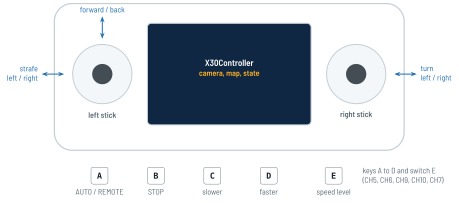
The H12 sends its sticks over its own radio, not as an Android gamepad; the app reads them through Skydroid’s SDK. In Settings (gear) › Skydroid H12 sticks the link and every channel show live:
pick the channels of forward, strafe and turn (default 2, 1, 3: the left stick drives and strafes, the right stick turns) and tick reverse for one that goes the wrong way;
a released stick must read about 1500. A stick without a centring spring (a throttle stick) must never drive: map forward to a stick that centres by itself, such as CH4.
On any other Android phone or tablet the app drives with touch sticks on the screen.