
3. The H12 and X30Controller
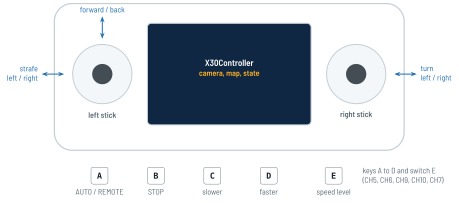
3.1 Sticks, keys and modes
| Control | What it does |
|---|---|
| Left stick | forward and back; left and right: step sideways |
| Right stick | turn left and right |
| A | AUTO or REMOTE |
| B | STOP: the software e-stop |
| C / D | slower / faster (three speed levels) |
| Switch E | the speed level directly |
REMOTE: the sticks drive the robot. Nothing else does.
AUTO: the robot follows its route; the sticks do nothing. The screen says AUTO mode: switch to REMOTE to drive when you try.
The robot listens to one handheld at a time. When the H12 falls silent (out of range, app closed), the robot stops its stick motion within a fraction of a second.
3.2 The drive screen
Top bar: battery, signal, mode, localization (Start pose, Tag, No loc), the protective field (Path clear, Slowed, Blocked, No scan), health (Needs attention) and the trip.
Large view: the inspection camera, visible or thermal (the camera button switches); swap it with the map, which shows the route, its stop points and the robot.
STOP: the red button, same as B.
Actions: Record, Point, Finish, Tags, Localize, Routes, Start, Pause, Resume, End, Inspect, the recorder, and the robot’s postures (stand up, sit down).
3.3 STOP and release
STOP (key B or the red button) holds the robot still: E-stop on: the robot is held still. A patrol pauses. To release, hold STOP for a second (Hold to release). After a release the robot moves only once the sticks were let go: a stick held during the release never moves it.
3.4 On a phone or tablet
The same app (version 1.1 or later) runs on any Android phone or tablet. Without the H12 it shows touch sticks on the screen: the left one drives and steps sideways, the right one turns; let go and the robot stops. Settings › Sticks chooses who drives:
| Choice | Drives |
|---|---|
| Auto | the H12’s sticks, else a gamepad, else the touch sticks |
| H12 | only the H12’s sticks |
| Gamepad | only a gamepad (Bluetooth or USB) |
| Touch | only the touch sticks |